How do I add a receipt?
Take a photo, record a video for long receipts, or upload a file you already have.
At stores that require a receipt, you earn rewards by adding your EBT receipt in the Forage app. You can take a photo, record a video, or add a file you already have on your phone.
Long receipt? Record a video instead. Panning down the receipt in one video is the easiest way to capture a long one without losing the small print.
Before you start
Link your EBT card if you have not already. Forage can only reward purchases made with the EBT card linked to your account.
Open the receipt screen
Two ways to get there:
Tap the + button in the bottom navigation bar
Tap an offer card and select any Receipt Required checkout option
Both go to the same place. Then, tap Get started.

Whichever path you take, the receipt needs to show four things:
Store name
Purchase date
All items purchased
Amount paid with EBT
Take a photo or video
The camera opens with two settings. Pick the one that matches your receipt.
Your receipt | Select |
|---|---|
Fits in one clear photo | Short receipt |
Too long to fit in one photo | Long receipt |
Allow camera access if this is your first time.

Short receipt
Lay the receipt flat and step back far enough to fit the whole thing in frame.
Take the photo.
Check that the text is readable. Retake it if any part is blurry or cut off.
Tap Submit.
Long receipt
Lay the receipt flat on a table or counter.
Start recording at the top of the receipt and move your phone down slowly to the bottom, keeping the receipt in frame the whole way. Record the whole receipt in one video.
Watch it back. If any part is blurry or cut off, record it again.
Tap Submit when the whole receipt is readable.
Upload a photo
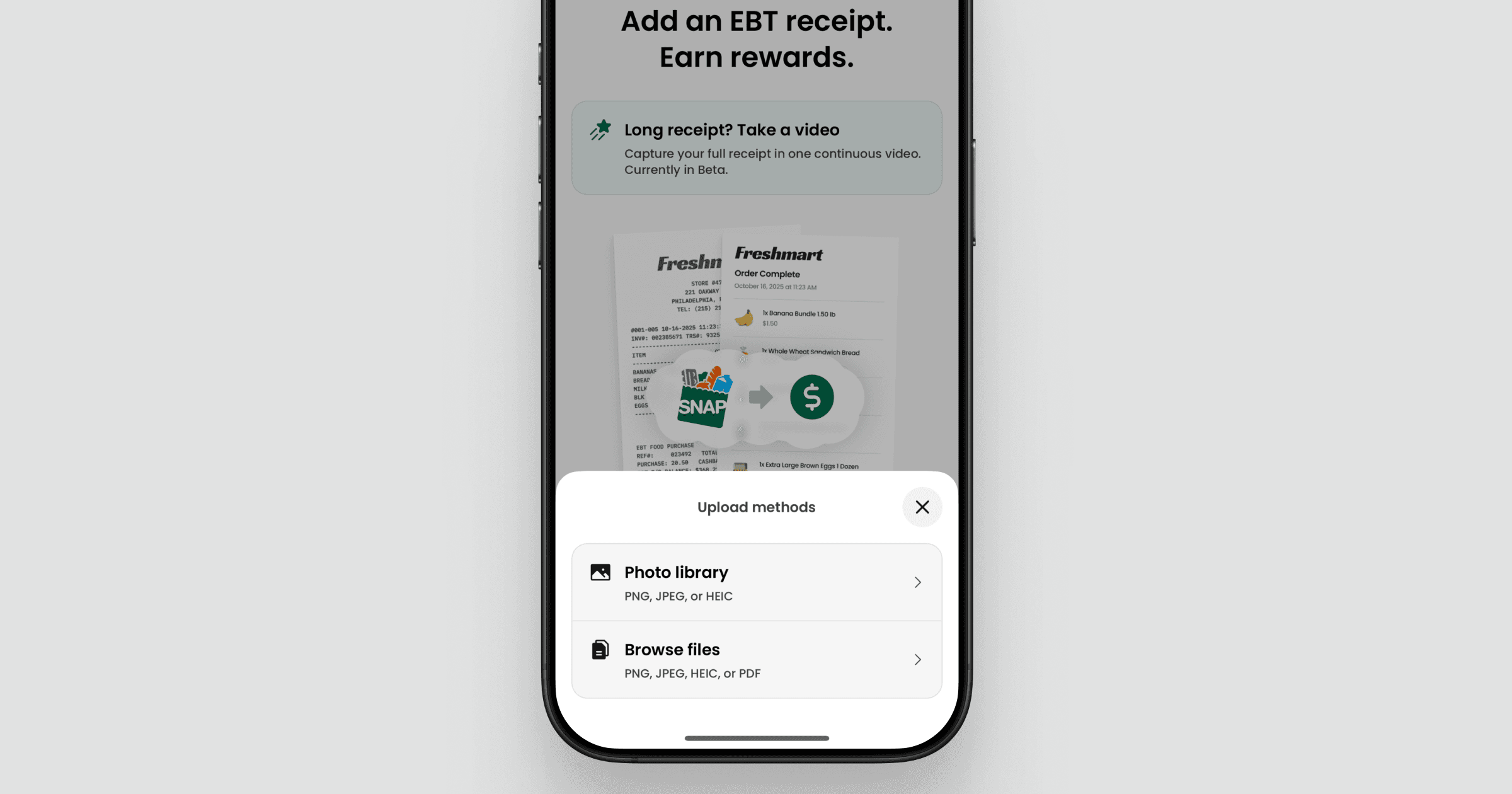
Tap Upload a photo and pick where the file is saved.
Where your receipt is saved | Tap this | Accepts |
|---|---|---|
In your photos | Photo library | PNG, JPEG, HEIC |
Anywhere else on your phone, including a saved order invoice | Browse files | PDF, PNG, JPEG, HEIC |
Pick the file, check that it is readable, then tap Submit.
After you submit
You will see a success screen, where you can add another receipt or return to the app.
Most photo receipts are reviewed within a minute. Videos take a little longer. Either way, some receipts need a closer look and can take 1 to 2 business days.
You can check the status any time in the Activity tab.
If a receipt is rejected, the reason shows in the Activity tab. See Why was my receipt rejected?
Still need help?
If a receipt will not submit, make sure you are on the latest version of the app, then close and reopen it and try again.
Still stuck? Contact Forage Support from the app and tell us the store name, the purchase date, and the amount you paid with EBT.
How do I add a receipt?
Take a photo, record a video for long receipts, or upload a file you already have.
At stores that require a receipt, you earn rewards by adding your EBT receipt in the Forage app. You can take a photo, record a video, or add a file you already have on your phone.
Long receipt? Record a video instead. Panning down the receipt in one video is the easiest way to capture a long one without losing the small print.
Before you start
Link your EBT card if you have not already. Forage can only reward purchases made with the EBT card linked to your account.
Open the receipt screen
Two ways to get there:
Tap the + button in the bottom navigation bar
Tap an offer card and select any Receipt Required checkout option
Both go to the same place. Then, tap Get started.
Whichever path you take, the receipt needs to show four things:
Store name
Purchase date
All items purchased
Amount paid with EBT
Take a photo or video
The camera opens with two settings. Pick the one that matches your receipt.
Your receipt | Select |
|---|---|
Fits in one clear photo | Short receipt |
Too long to fit in one photo | Long receipt |
Allow camera access if this is your first time.
Short receipt
Lay the receipt flat and step back far enough to fit the whole thing in frame.
Take the photo.
Check that the text is readable. Retake it if any part is blurry or cut off.
Tap Submit.
Long receipt
Lay the receipt flat on a table or counter.
Start recording at the top of the receipt and move your phone down slowly to the bottom, keeping the receipt in frame the whole way. Record the whole receipt in one video.
Watch it back. If any part is blurry or cut off, record it again.
Tap Submit when the whole receipt is readable.
Upload a photo
Tap Upload a photo and pick where the file is saved.
Where your receipt is saved | Tap this | Accepts |
|---|---|---|
In your photos | Photo library | PNG, JPEG, HEIC |
Anywhere else on your phone, including a saved order invoice | Browse files | PDF, PNG, JPEG, HEIC |
Pick the file, check that it is readable, then tap Submit.
After you submit
You will see a success screen, where you can add another receipt or return to the app.
Most photo receipts are reviewed within a minute. Videos take a little longer. Either way, some receipts need a closer look and can take 1 to 2 business days.
You can check the status any time in the Activity tab.
If a receipt is rejected, the reason shows in the Activity tab. See Why was my receipt rejected?
Still need help?
If a receipt will not submit, make sure you are on the latest version of the app, then close and reopen it and try again.
Still stuck? Contact Forage Support from the app and tell us the store name, the purchase date, and the amount you paid with EBT.
How do I add a receipt?
Take a photo, record a video for long receipts, or upload a file you already have.
At stores that require a receipt, you earn rewards by adding your EBT receipt in the Forage app. You can take a photo, record a video, or add a file you already have on your phone.
Long receipt? Record a video instead. Panning down the receipt in one video is the easiest way to capture a long one without losing the small print.
Before you start
Link your EBT card if you have not already. Forage can only reward purchases made with the EBT card linked to your account.
Open the receipt screen
Two ways to get there:
Tap the + button in the bottom navigation bar
Tap an offer card and select any Receipt Required checkout option
Both go to the same place. Then, tap Get started.
Whichever path you take, the receipt needs to show four things:
Store name
Purchase date
All items purchased
Amount paid with EBT
Take a photo or video
The camera opens with two settings. Pick the one that matches your receipt.
Your receipt | Select |
|---|---|
Fits in one clear photo | Short receipt |
Too long to fit in one photo | Long receipt |
Allow camera access if this is your first time.
Short receipt
Lay the receipt flat and step back far enough to fit the whole thing in frame.
Take the photo.
Check that the text is readable. Retake it if any part is blurry or cut off.
Tap Submit.
Long receipt
Lay the receipt flat on a table or counter.
Start recording at the top of the receipt and move your phone down slowly to the bottom, keeping the receipt in frame the whole way. Record the whole receipt in one video.
Watch it back. If any part is blurry or cut off, record it again.
Tap Submit when the whole receipt is readable.
Upload a photo
Tap Upload a photo and pick where the file is saved.
Where your receipt is saved | Tap this | Accepts |
|---|---|---|
In your photos | Photo library | PNG, JPEG, HEIC |
Anywhere else on your phone, including a saved order invoice | Browse files | PDF, PNG, JPEG, HEIC |
Pick the file, check that it is readable, then tap Submit.
After you submit
You will see a success screen, where you can add another receipt or return to the app.
Most photo receipts are reviewed within a minute. Videos take a little longer. Either way, some receipts need a closer look and can take 1 to 2 business days.
You can check the status any time in the Activity tab.
If a receipt is rejected, the reason shows in the Activity tab. See Why was my receipt rejected?
Still need help?
If a receipt will not submit, make sure you are on the latest version of the app, then close and reopen it and try again.
Still stuck? Contact Forage Support from the app and tell us the store name, the purchase date, and the amount you paid with EBT.
How do I add a receipt?
Take a photo, record a video for long receipts, or upload a file you already have.
At stores that require a receipt, you earn rewards by adding your EBT receipt in the Forage app. You can take a photo, record a video, or add a file you already have on your phone.
Long receipt? Record a video instead. Panning down the receipt in one video is the easiest way to capture a long one without losing the small print.
Before you start
Link your EBT card if you have not already. Forage can only reward purchases made with the EBT card linked to your account.
Open the receipt screen
Two ways to get there:
Tap the + button in the bottom navigation bar
Tap an offer card and select any Receipt Required checkout option
Both go to the same place. Then, tap Get started.
Whichever path you take, the receipt needs to show four things:
Store name
Purchase date
All items purchased
Amount paid with EBT
Take a photo or video
The camera opens with two settings. Pick the one that matches your receipt.
Your receipt | Select |
|---|---|
Fits in one clear photo | Short receipt |
Too long to fit in one photo | Long receipt |
Allow camera access if this is your first time.
Short receipt
Lay the receipt flat and step back far enough to fit the whole thing in frame.
Take the photo.
Check that the text is readable. Retake it if any part is blurry or cut off.
Tap Submit.
Long receipt
Lay the receipt flat on a table or counter.
Start recording at the top of the receipt and move your phone down slowly to the bottom, keeping the receipt in frame the whole way. Record the whole receipt in one video.
Watch it back. If any part is blurry or cut off, record it again.
Tap Submit when the whole receipt is readable.
Upload a photo
Tap Upload a photo and pick where the file is saved.
Where your receipt is saved | Tap this | Accepts |
|---|---|---|
In your photos | Photo library | PNG, JPEG, HEIC |
Anywhere else on your phone, including a saved order invoice | Browse files | PDF, PNG, JPEG, HEIC |
Pick the file, check that it is readable, then tap Submit.
After you submit
You will see a success screen, where you can add another receipt or return to the app.
Most photo receipts are reviewed within a minute. Videos take a little longer. Either way, some receipts need a closer look and can take 1 to 2 business days.
You can check the status any time in the Activity tab.
If a receipt is rejected, the reason shows in the Activity tab. See Why was my receipt rejected?
Still need help?
If a receipt will not submit, make sure you are on the latest version of the app, then close and reopen it and try again.
Still stuck? Contact Forage Support from the app and tell us the store name, the purchase date, and the amount you paid with EBT.
How do I add a receipt?
Take a photo, record a video for long receipts, or upload a file you already have.
At stores that require a receipt, you earn rewards by adding your EBT receipt in the Forage app. You can take a photo, record a video, or add a file you already have on your phone.
Long receipt? Record a video instead. Panning down the receipt in one video is the easiest way to capture a long one without losing the small print.
Before you start
Link your EBT card if you have not already. Forage can only reward purchases made with the EBT card linked to your account.
Open the receipt screen
Two ways to get there:
Tap the + button in the bottom navigation bar
Tap an offer card and select any Receipt Required checkout option
Both go to the same place. Then, tap Get started.
Whichever path you take, the receipt needs to show four things:
Store name
Purchase date
All items purchased
Amount paid with EBT
Take a photo or video
The camera opens with two settings. Pick the one that matches your receipt.
Your receipt | Select |
|---|---|
Fits in one clear photo | Short receipt |
Too long to fit in one photo | Long receipt |
Allow camera access if this is your first time.
Short receipt
Lay the receipt flat and step back far enough to fit the whole thing in frame.
Take the photo.
Check that the text is readable. Retake it if any part is blurry or cut off.
Tap Submit.
Long receipt
Lay the receipt flat on a table or counter.
Start recording at the top of the receipt and move your phone down slowly to the bottom, keeping the receipt in frame the whole way. Record the whole receipt in one video.
Watch it back. If any part is blurry or cut off, record it again.
Tap Submit when the whole receipt is readable.
Upload a photo
Tap Upload a photo and pick where the file is saved.
Where your receipt is saved | Tap this | Accepts |
|---|---|---|
In your photos | Photo library | PNG, JPEG, HEIC |
Anywhere else on your phone, including a saved order invoice | Browse files | PDF, PNG, JPEG, HEIC |
Pick the file, check that it is readable, then tap Submit.
After you submit
You will see a success screen, where you can add another receipt or return to the app.
Most photo receipts are reviewed within a minute. Videos take a little longer. Either way, some receipts need a closer look and can take 1 to 2 business days.
You can check the status any time in the Activity tab.
If a receipt is rejected, the reason shows in the Activity tab. See Why was my receipt rejected?
Still need help?
If a receipt will not submit, make sure you are on the latest version of the app, then close and reopen it and try again.
Still stuck? Contact Forage Support from the app and tell us the store name, the purchase date, and the amount you paid with EBT.
How do I add a receipt?
Take a photo, record a video for long receipts, or upload a file you already have.
At stores that require a receipt, you earn rewards by adding your EBT receipt in the Forage app. You can take a photo, record a video, or add a file you already have on your phone.
Long receipt? Record a video instead. Panning down the receipt in one video is the easiest way to capture a long one without losing the small print.
Before you start
Link your EBT card if you have not already. Forage can only reward purchases made with the EBT card linked to your account.
Open the receipt screen
Two ways to get there:
Tap the + button in the bottom navigation bar
Tap an offer card and select any Receipt Required checkout option
Both go to the same place. Then, tap Get started.
Whichever path you take, the receipt needs to show four things:
Store name
Purchase date
All items purchased
Amount paid with EBT
Take a photo or video
The camera opens with two settings. Pick the one that matches your receipt.
Your receipt | Select |
|---|---|
Fits in one clear photo | Short receipt |
Too long to fit in one photo | Long receipt |
Allow camera access if this is your first time.
Short receipt
Lay the receipt flat and step back far enough to fit the whole thing in frame.
Take the photo.
Check that the text is readable. Retake it if any part is blurry or cut off.
Tap Submit.
Long receipt
Lay the receipt flat on a table or counter.
Start recording at the top of the receipt and move your phone down slowly to the bottom, keeping the receipt in frame the whole way. Record the whole receipt in one video.
Watch it back. If any part is blurry or cut off, record it again.
Tap Submit when the whole receipt is readable.
Upload a photo
Tap Upload a photo and pick where the file is saved.
Where your receipt is saved | Tap this | Accepts |
|---|---|---|
In your photos | Photo library | PNG, JPEG, HEIC |
Anywhere else on your phone, including a saved order invoice | Browse files | PDF, PNG, JPEG, HEIC |
Pick the file, check that it is readable, then tap Submit.
After you submit
You will see a success screen, where you can add another receipt or return to the app.
Most photo receipts are reviewed within a minute. Videos take a little longer. Either way, some receipts need a closer look and can take 1 to 2 business days.
You can check the status any time in the Activity tab.
If a receipt is rejected, the reason shows in the Activity tab. See Why was my receipt rejected?
Still need help?
If a receipt will not submit, make sure you are on the latest version of the app, then close and reopen it and try again.
Still stuck? Contact Forage Support from the app and tell us the store name, the purchase date, and the amount you paid with EBT.
How do I add a receipt?
Take a photo, record a video for long receipts, or upload a file you already have.
At stores that require a receipt, you earn rewards by adding your EBT receipt in the Forage app. You can take a photo, record a video, or add a file you already have on your phone.
Long receipt? Record a video instead. Panning down the receipt in one video is the easiest way to capture a long one without losing the small print.
Before you start
Link your EBT card if you have not already. Forage can only reward purchases made with the EBT card linked to your account.
Open the receipt screen
Two ways to get there:
Tap the + button in the bottom navigation bar
Tap an offer card and select any Receipt Required checkout option
Both go to the same place. Then, tap Get started.
Whichever path you take, the receipt needs to show four things:
Store name
Purchase date
All items purchased
Amount paid with EBT
Take a photo or video
The camera opens with two settings. Pick the one that matches your receipt.
Your receipt | Select |
|---|---|
Fits in one clear photo | Short receipt |
Too long to fit in one photo | Long receipt |
Allow camera access if this is your first time.
Short receipt
Lay the receipt flat and step back far enough to fit the whole thing in frame.
Take the photo.
Check that the text is readable. Retake it if any part is blurry or cut off.
Tap Submit.
Long receipt
Lay the receipt flat on a table or counter.
Start recording at the top of the receipt and move your phone down slowly to the bottom, keeping the receipt in frame the whole way. Record the whole receipt in one video.
Watch it back. If any part is blurry or cut off, record it again.
Tap Submit when the whole receipt is readable.
Upload a photo
Tap Upload a photo and pick where the file is saved.
Where your receipt is saved | Tap this | Accepts |
|---|---|---|
In your photos | Photo library | PNG, JPEG, HEIC |
Anywhere else on your phone, including a saved order invoice | Browse files | PDF, PNG, JPEG, HEIC |
Pick the file, check that it is readable, then tap Submit.
After you submit
You will see a success screen, where you can add another receipt or return to the app.
Most photo receipts are reviewed within a minute. Videos take a little longer. Either way, some receipts need a closer look and can take 1 to 2 business days.
You can check the status any time in the Activity tab.
If a receipt is rejected, the reason shows in the Activity tab. See Why was my receipt rejected?
Still need help?
If a receipt will not submit, make sure you are on the latest version of the app, then close and reopen it and try again.
Still stuck? Contact Forage Support from the app and tell us the store name, the purchase date, and the amount you paid with EBT.
Forage is equal opportunity. ©️ 2026 Forage Technology Corporation, Inc.
Forage is equal opportunity. ©️ 2026 Forage Technology Corporation, Inc.
Forage is equal opportunity. ©️ 2026 Forage Technology Corporation, Inc.
Forage is equal opportunity. ©️ 2026 Forage Technology Corporation, Inc.
Forage is equal opportunity. ©️ 2026 Forage Technology Corporation, Inc.
Forage is equal opportunity. ©️ 2026 Forage Technology Corporation, Inc.
Forage is equal opportunity. ©️ 2026 Forage Technology Corporation, Inc.