How do I add my Visa card to Apple Wallet?
Follow these steps to use your Visa card in Apple Pay.
Adding your rewards to Apple Wallet
After withdrawing your rewards as a prepaid Visa card (via Tremendous), you can add it to your Apple Wallet to make online and in-store checkout easier with Apple Pay.
Follow these steps:
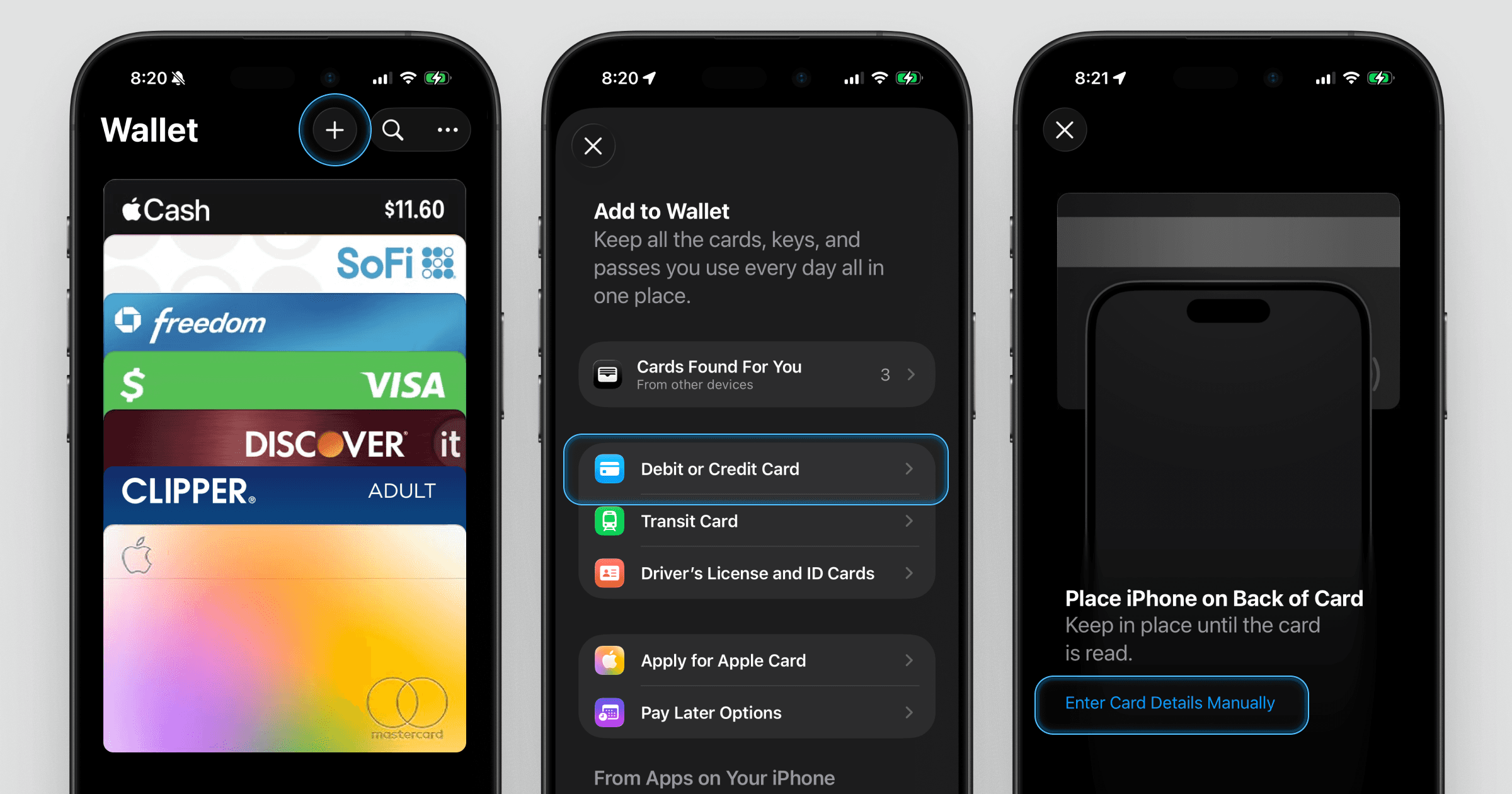
Open Wallet on your iPhone
Tap the + button at the top of the screen
Select Debit or Credit Card
Tap Continue
Tap Enter Card Details Manually
Enter the details of your prepaid Visa card
Tap Continue to finish
Once added, you can use your rewards anywhere Apple Pay and Visa are accepted.
Still have questions?
If you’re having trouble using your prepaid Visa card, contact Forage Support from the app and we’ll help. You can also read our article: Will Forage add more ways to withdraw rewards?
How do I add my Visa card to Apple Wallet?
Follow these steps to use your Visa card in Apple Pay.
Adding your rewards to Apple Wallet
After withdrawing your rewards as a prepaid Visa card (via Tremendous), you can add it to your Apple Wallet to make online and in-store checkout easier with Apple Pay.
Follow these steps:
Open Wallet on your iPhone
Tap the + button at the top of the screen
Select Debit or Credit Card
Tap Continue
Tap Enter Card Details Manually
Enter the details of your prepaid Visa card
Tap Continue to finish
Once added, you can use your rewards anywhere Apple Pay and Visa are accepted.
Still have questions?
If you’re having trouble using your prepaid Visa card, contact Forage Support from the app and we’ll help. You can also read our article: Will Forage add more ways to withdraw rewards?
How do I add my Visa card to Apple Wallet?
Follow these steps to use your Visa card in Apple Pay.
Adding your rewards to Apple Wallet
After withdrawing your rewards as a prepaid Visa card (via Tremendous), you can add it to your Apple Wallet to make online and in-store checkout easier with Apple Pay.
Follow these steps:
Open Wallet on your iPhone
Tap the + button at the top of the screen
Select Debit or Credit Card
Tap Continue
Tap Enter Card Details Manually
Enter the details of your prepaid Visa card
Tap Continue to finish
Once added, you can use your rewards anywhere Apple Pay and Visa are accepted.
Still have questions?
If you’re having trouble using your prepaid Visa card, contact Forage Support from the app and we’ll help. You can also read our article: Will Forage add more ways to withdraw rewards?
How do I add my Visa card to Apple Wallet?
Follow these steps to use your Visa card in Apple Pay.
Adding your rewards to Apple Wallet
After withdrawing your rewards as a prepaid Visa card (via Tremendous), you can add it to your Apple Wallet to make online and in-store checkout easier with Apple Pay.
Follow these steps:
Open Wallet on your iPhone
Tap the + button at the top of the screen
Select Debit or Credit Card
Tap Continue
Tap Enter Card Details Manually
Enter the details of your prepaid Visa card
Tap Continue to finish
Once added, you can use your rewards anywhere Apple Pay and Visa are accepted.
Still have questions?
If you’re having trouble using your prepaid Visa card, contact Forage Support from the app and we’ll help. You can also read our article: Will Forage add more ways to withdraw rewards?
How do I add my Visa card to Apple Wallet?
Follow these steps to use your Visa card in Apple Pay.
Adding your rewards to Apple Wallet
After withdrawing your rewards as a prepaid Visa card (via Tremendous), you can add it to your Apple Wallet to make online and in-store checkout easier with Apple Pay.
Follow these steps:
Open Wallet on your iPhone
Tap the + button at the top of the screen
Select Debit or Credit Card
Tap Continue
Tap Enter Card Details Manually
Enter the details of your prepaid Visa card
Tap Continue to finish
Once added, you can use your rewards anywhere Apple Pay and Visa are accepted.
Still have questions?
If you’re having trouble using your prepaid Visa card, contact Forage Support from the app and we’ll help. You can also read our article: Will Forage add more ways to withdraw rewards?
How do I add my Visa card to Apple Wallet?
Follow these steps to use your Visa card in Apple Pay.
Adding your rewards to Apple Wallet
After withdrawing your rewards as a prepaid Visa card (via Tremendous), you can add it to your Apple Wallet to make online and in-store checkout easier with Apple Pay.
Follow these steps:
Open Wallet on your iPhone
Tap the + button at the top of the screen
Select Debit or Credit Card
Tap Continue
Tap Enter Card Details Manually
Enter the details of your prepaid Visa card
Tap Continue to finish
Once added, you can use your rewards anywhere Apple Pay and Visa are accepted.
Still have questions?
If you’re having trouble using your prepaid Visa card, contact Forage Support from the app and we’ll help. You can also read our article: Will Forage add more ways to withdraw rewards?
How do I add my Visa card to Apple Wallet?
Follow these steps to use your Visa card in Apple Pay.
Adding your rewards to Apple Wallet
After withdrawing your rewards as a prepaid Visa card (via Tremendous), you can add it to your Apple Wallet to make online and in-store checkout easier with Apple Pay.
Follow these steps:
Open Wallet on your iPhone
Tap the + button at the top of the screen
Select Debit or Credit Card
Tap Continue
Tap Enter Card Details Manually
Enter the details of your prepaid Visa card
Tap Continue to finish
Once added, you can use your rewards anywhere Apple Pay and Visa are accepted.
Still have questions?
If you’re having trouble using your prepaid Visa card, contact Forage Support from the app and we’ll help. You can also read our article: Will Forage add more ways to withdraw rewards?
Forage is equal opportunity. ©️ 2026 Forage Technology Corporation, Inc.
Forage is equal opportunity. ©️ 2026 Forage Technology Corporation, Inc.
Forage is equal opportunity. ©️ 2026 Forage Technology Corporation, Inc.
Forage is equal opportunity. ©️ 2026 Forage Technology Corporation, Inc.
Forage is equal opportunity. ©️ 2026 Forage Technology Corporation, Inc.
Forage is equal opportunity. ©️ 2026 Forage Technology Corporation, Inc.
Forage is equal opportunity. ©️ 2026 Forage Technology Corporation, Inc.